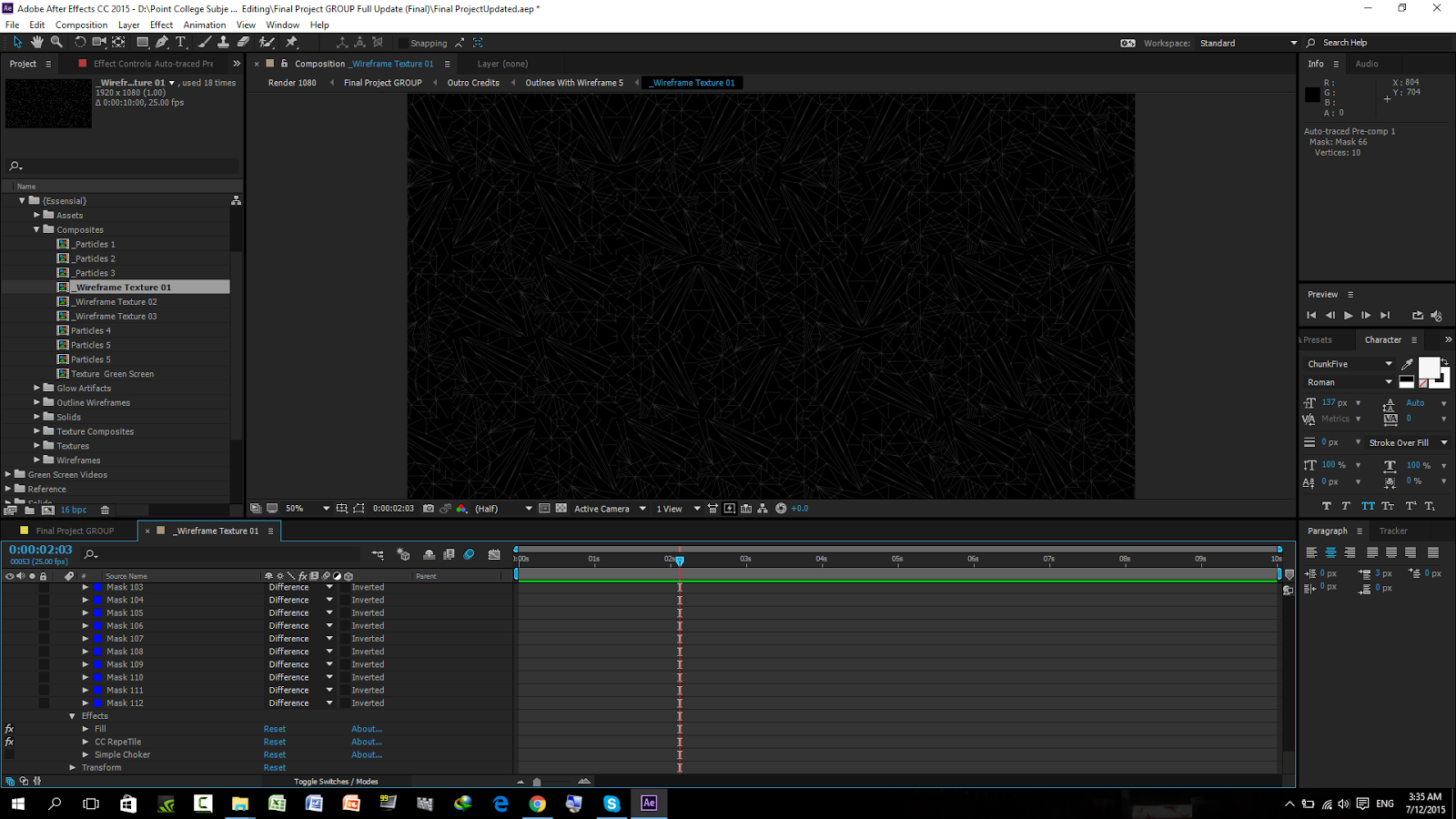
Compositing and Editing
1st Week
1st Week
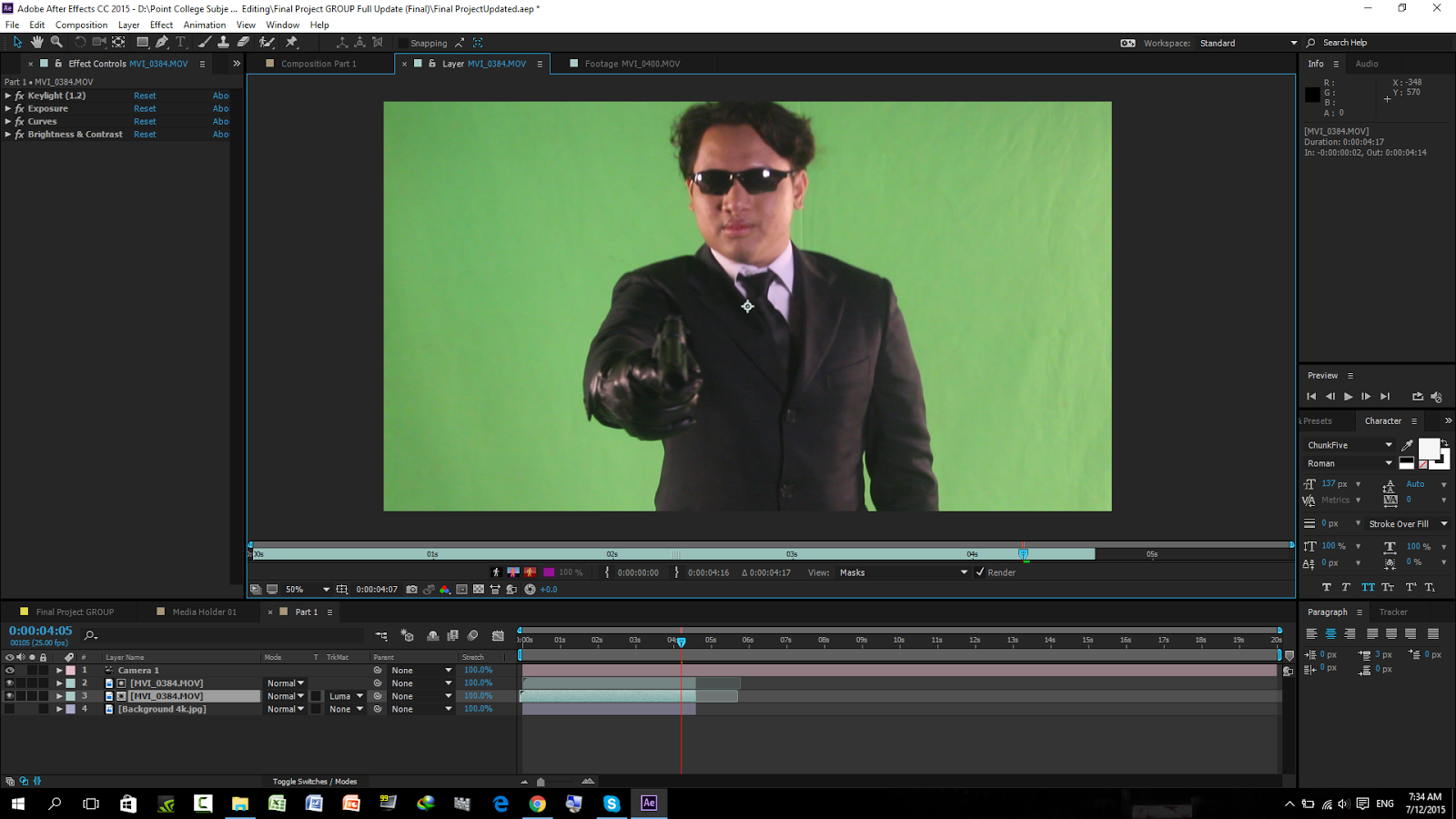
After importing green screen video to After Effect select > Effect>Keying>Keylight and click on Green Screen

Import photoshop file picture to project


Add light effect and to get better viewing of light effect select 2 View

Click new>Camera select preset 20mm and Click on Enable Depth of Field

Click CTRL+M to Render file

Select h.264 for the output Module

2nd Week
Select image for background

Crop Image to three different layers


 Import PSD file to After Effect and re-size /arrange
and import green screen video

Crop and edit video , use effect> keylight to remove green screen then crop out and edit colour of Meteoroid with hue and saturation
 Finally and camera ,light and CTRL+M to render change render output


Week 3 Dragon
After choosing background image crop it to different layers
 Outer

Cloud

Inner

Lava

Import Blue screen Dragon video

Keylight blue screen

Play video

Import Lava Bursting Video

Keylight Green Screen Video

Crop Video to appropriate length

Import PSD cropped Background Layers

Arrange video to area

2 View video to add light

Adjusting brightness and contrast for dragon video

Import storm clouds background video

Track dragon video for placing flame from mouth and adjusting size

Tracking Failed repeatedly

Crop out dragon opening and closing mouth from start to end part by part resulting null and camera

Mask flame coming from Dragon's mouth

Connect all null and camera layers to main layer

Tracking of flame from dragons mouth was not good so copy and cut flame from dragon's mouth and adjust timing along with direction of flame coming out then feather flame.

Last minute adjustments

Render in h.26,mp4 format

Final Video
Week 4
War
Rotoscoping


Keylight green screen


Cropping the photo for front, mid and back section for a better impression


3D Camera effect


Final References
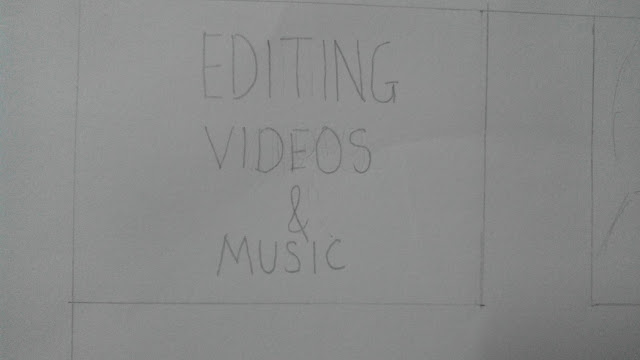
Storyboard




Work


Select image for background

Crop Image to three different layers


and import green screen video
Select new composition and HDTV 24 1080P

Crop and edit video , use effect> keylight to remove green screen then crop out and edit colour of Meteoroid with hue and saturation


Week 3


Week 3 Dragon
After choosing background image crop it to different layers


Cloud

Inner

Lava

Import Blue screen Dragon video

Keylight blue screen

Play video

Import Lava Bursting Video

Keylight Green Screen Video

Crop Video to appropriate length

Import PSD cropped Background Layers

Arrange video to area

2 View video to add light

Adjusting brightness and contrast for dragon video

Import storm clouds background video

Track dragon video for placing flame from mouth and adjusting size

Tracking Failed repeatedly

Crop out dragon opening and closing mouth from start to end part by part resulting null and camera

Mask flame coming from Dragon's mouth

Connect all null and camera layers to main layer

Tracking of flame from dragons mouth was not good so copy and cut flame from dragon's mouth and adjust timing along with direction of flame coming out then feather flame.

Last minute adjustments

Render in h.26,mp4 format

Final Video
Week 4
War
Rotoscoping


Keylight green screen


Cropping the photo for front, mid and back section for a better impression


3D Camera effect


Final References
FINAL